How do I crop an image into a circle online?
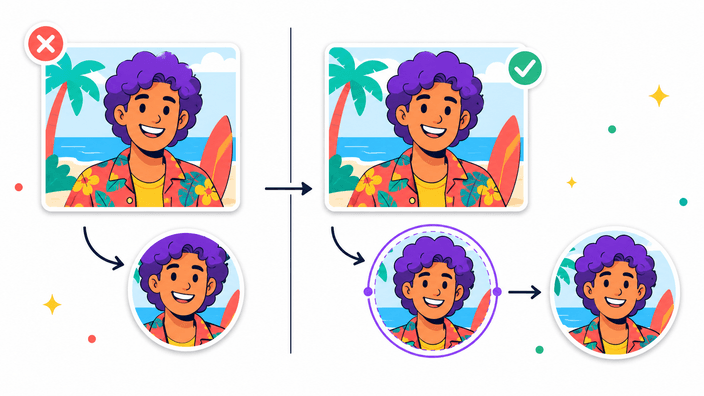
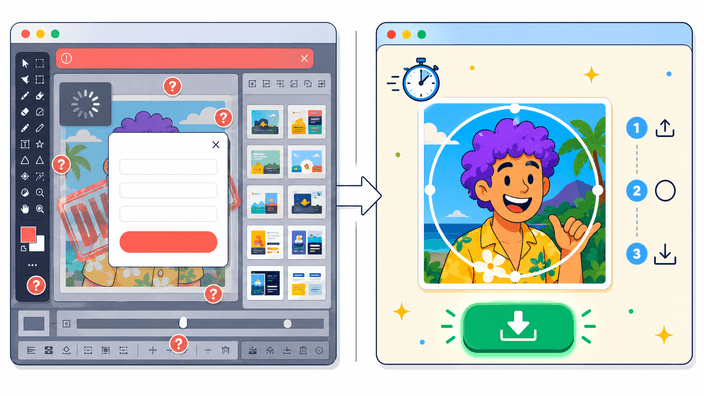
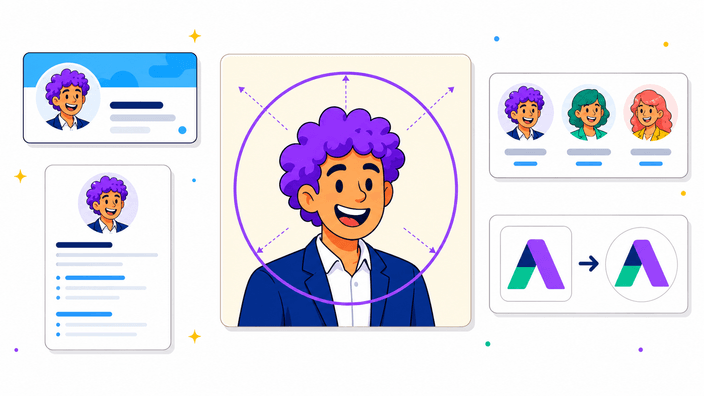
Upload or drop your image, move it until the subject sits inside the circular frame, then crop and download. RoundCut creates the circular image in your browser — you don't need to upload the file to a server or create an account.
Is RoundCut free to use?
Yes. Circle Crop is free to use in the browser, with no signup and no watermark.
Does RoundCut upload my photo?
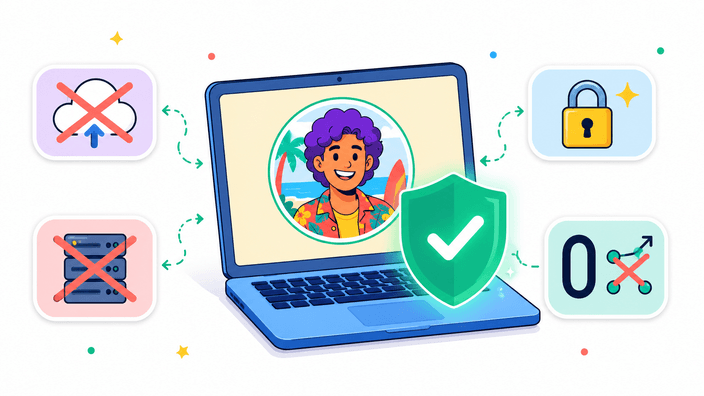
No. The crop runs locally in your browser. Your image is decoded, edited, and exported on your device, and the working copy is discarded when you close the tab.
What is a PFP cropper?
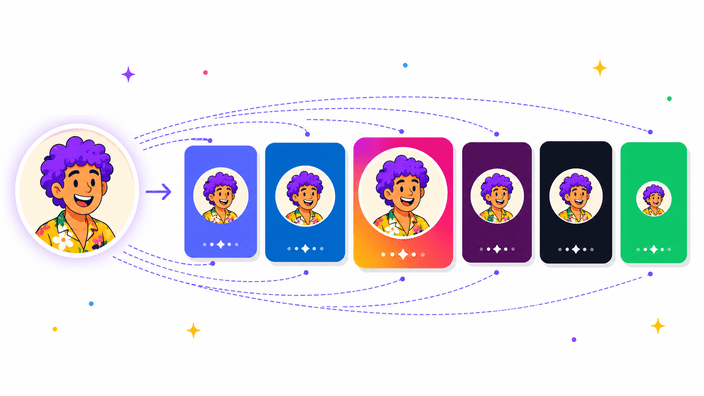
A PFP cropper helps you frame a profile picture before you upload it to Discord, TikTok, Instagram, X, Reddit, or another account. It's useful because many platforms display avatars as circles even when the original upload is square.
Which image formats can I upload?
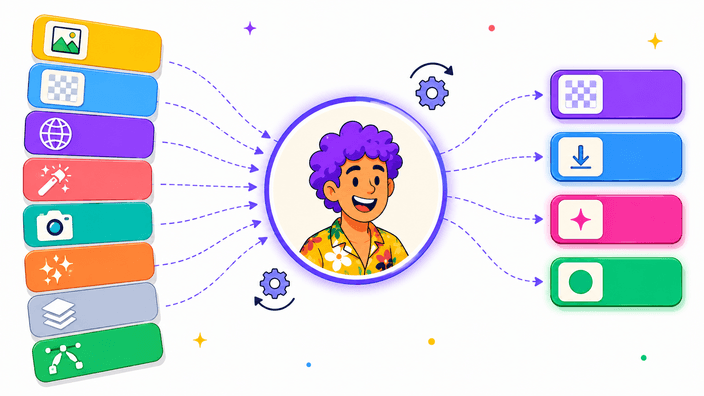
You can upload JPG, JPEG, PNG, WebP, GIF, AVIF, BMP, SVG, and HEIC/HEIF files when your browser can decode them. GIFs export as a static frame, and HEIC support is browser-dependent.
Can I circle crop on iPhone or iPad?
Yes. RoundCut runs in mobile Safari, Chrome, and Firefox. iPhone HEIC/HEIF photos decode natively in Safari. On Chrome iOS or Android, convert the photo to JPEG or PNG first, or take a screenshot before uploading.
Which formats can I export?
You can export PNG, WebP, AVIF, or JPEG. PNG is the safest default for transparent corners. WebP and AVIF produce smaller transparent files. JPEG uses a solid background because JPEG doesn't support transparency.
Can I get a transparent background?
Yes. PNG, WebP, and AVIF exports keep the corners outside the circle transparent. If you choose JPEG, RoundCut fills those corners with a solid background instead.
What is the maximum export size?
The maximum output is 4096 × 4096 pixels. RoundCut keeps the crop as sharp as the source image allows, but it doesn't upscale small images.
What size should I export for social media avatars?
A 1024 × 1024 export is a strong default for most profile pictures. If you need a smaller file, 512 × 512 is usually enough for Discord and messaging apps, while 640 × 640 or larger is a good choice for LinkedIn.
What size should my Discord avatar be?
Use at least 512 × 512 pixels when you can. A 1024 × 1024 crop gives Discord more detail to resize and usually looks cleaner on high-density screens.
What is the recommended LinkedIn profile picture size?
LinkedIn requires at least 400 × 400 pixels and accepts PNG or JPG. A 640 × 640 or 1024 × 1024 crop usually looks sharper, especially on high-density screens.
What size is an Instagram profile picture?
Instagram displays profile photos as a circle and compresses uploaded images. A square 1024 × 1024 or 1080 × 1080 export gives Instagram more detail to work with before it resizes the profile picture.
What size should my WhatsApp profile picture be?
WhatsApp recommends a 1:1 square image. A 640 × 640 or 1024 × 1024 export is a good practical default — WhatsApp scales it down after upload, so keeping the subject centered and clear matters more than hitting an exact pixel count.
Can I rotate, flip, or zoom the image inside the circle?
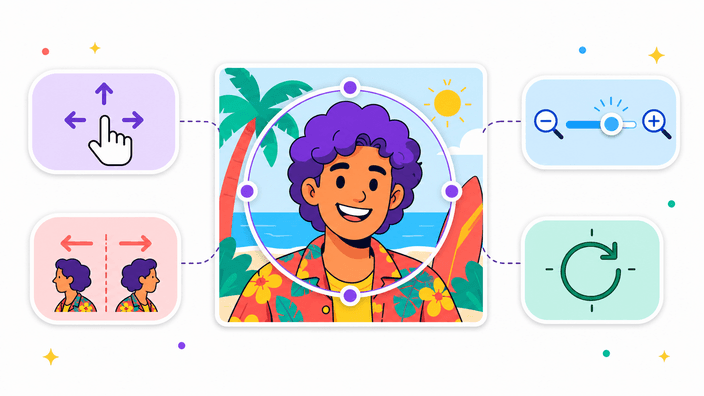
Yes. Drag to reposition the image, use the zoom slider (50% to 300%) or the mouse wheel and pinch gesture, flip horizontally or vertically, and rotate in 90-degree steps. Reset all reverts every transform without re-uploading the file.
Which output sizes can I pick?
Three presets: Original keeps the natural pixel size of your crop, Profile pic exports at 512 × 512 (safe for Discord, X, Slack, LinkedIn, GitHub), and Avatar exports at 256 × 256 (fits forum avatars and email signatures). Original is the default and never upscales smaller photos.
Can I pick any background color instead of transparent?
Yes. Open Advanced options on the download screen and switch Background to Color, then pick any hex value from the native color picker. Transparent is the default for PNG, WebP, and AVIF. JPEG always uses a solid color because the format doesn't support transparency.
How does the quality slider work?
The quality slider applies to WebP, AVIF, and JPEG exports. Higher values keep more detail and create larger files. PNG ignores the slider because it's lossless.
Can I add a border ring around the circle?
Not yet. For now, export a transparent PNG with your chosen background and add the border in any design editor. Border rings are tracked as a future addition.