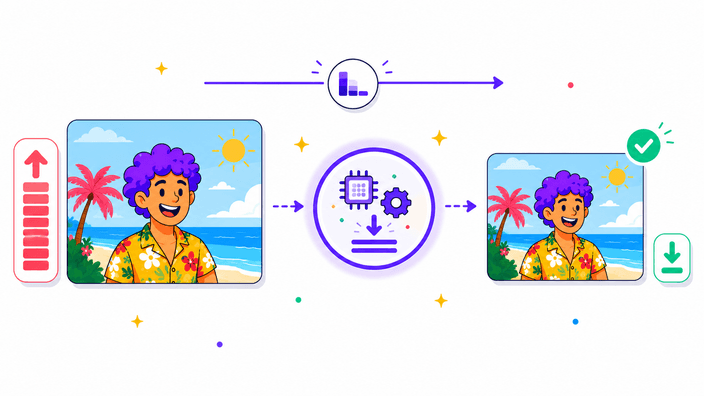
Compress images in your browser

Upload a JPG, PNG, WebP, or AVIF, adjust the quality slider, and see the new size and savings update in real time. Export as JPG, WebP, AVIF, or PNG. No upload, no account.

or drop the image here

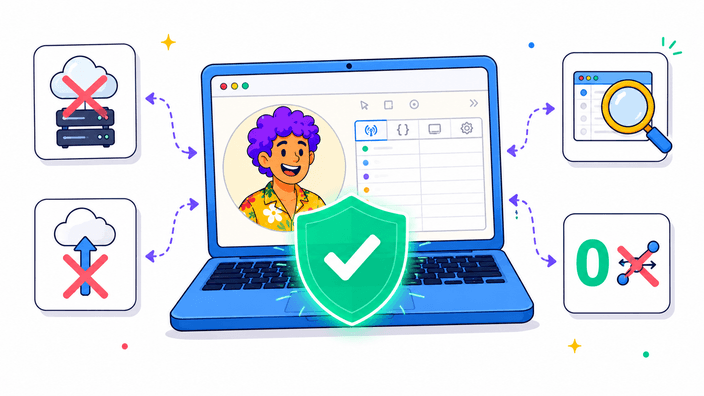
Your image never leaves your device

RoundCut Compress Image re-encodes your JPG, PNG, WebP, or AVIF entirely in your browser using WebAssembly — the photo never leaves your device. Adjust the quality slider, see the exact file-size savings live, compare JPG vs WebP vs AVIF at a glance, then download the smaller file.

What this tool does

It takes an image you already have and makes a smaller copy. Lossy formats (JPG, WebP, AVIF) get re-encoded at the quality level you pick — the lower the quality, the smaller the file, down to the point where visible artifacts appear. You watch the live split-view preview and the live file-size counter as you drag the slider, so you can pick the lowest quality that still looks right. The output keeps the original dimensions exactly; to also reduce pixel size, use the Resize tool first.
Private by design

The file you drop into this tool never leaves your browser. There is no server for this feature, no analytics that sees image pixels, no third-party service in the request chain. You can verify this yourself: open DevTools, go to the Network tab, filter to image requests, then run the tool. The count is zero. That means it's safe for a scanned contract, a confidential screenshot, a photo of your kids, or a product shot under NDA — anything where a server round-trip would create a liability. The only network requests are the one-time downloads of the WebAssembly codec modules, which are static files that contain no information about your image.

What the tool is (and isn't)

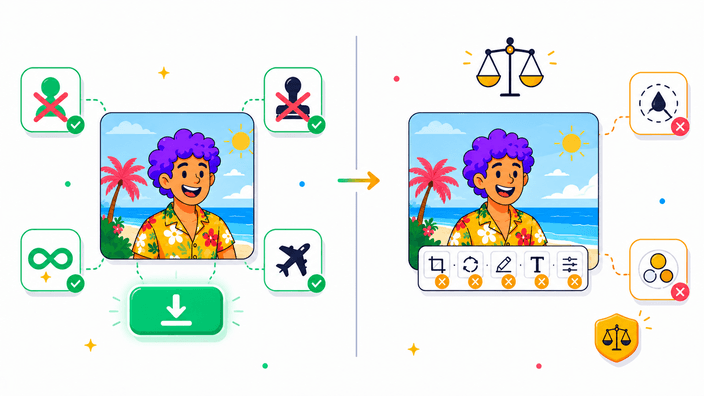
Free, with no account, no signup, no watermark, and no per-image or per-day limit. It works offline after the first encode of each format — the WebAssembly modules are cached by your browser, so you can compress on a plane or on a locked-down corporate network where server uploads are blocked. What it doesn't do: it won't resize — input dimensions equal output dimensions (use the Resize tool first if you need to go from 4000 px wide to 1200 px). It doesn't preserve EXIF, GPS, or camera metadata — the re-encoders strip it by default, which is a privacy win for most use cases. It doesn't do batch: one image at a time. It doesn't have a target-size mode: move the slider and watch the byte counter — you can hit any target size in two or three tries. GIF animation isn't kept: only the first frame is used.

Live format comparison — pick the smallest in one glance

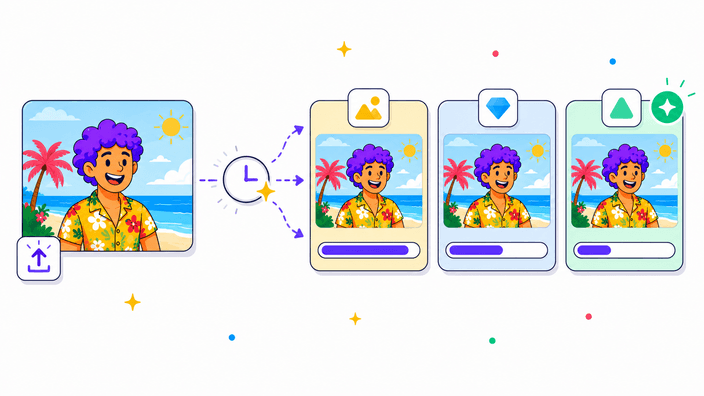
Below the quality slider you'll see three cards: JPG, WebP, and AVIF. They all encode your photo at the quality you picked and show the resulting file size as each one finishes. Whichever produces the smallest file gets a green Smallest badge — click that card to set it as your output format, then download. This is the difference between this tool and auto-pickers like TinyPNG: you see the actual numbers for your specific image, at your specific quality level, before you commit. No guessing whether AVIF would have been smaller than WebP for that particular photo.

How it works: WebAssembly in your browser

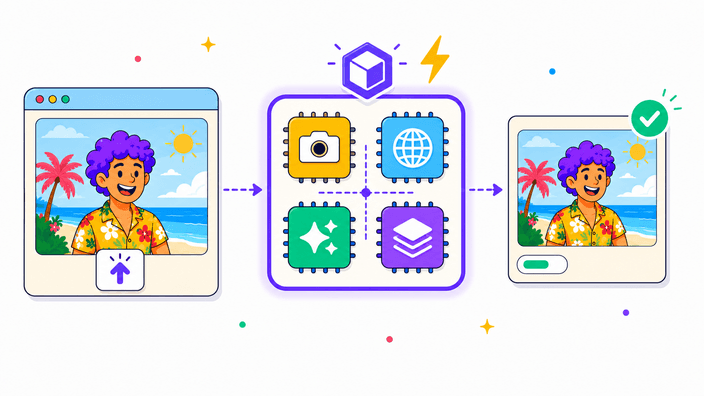
Your image is decoded into a canvas, then re-encoded using WebAssembly builds of four professional codecs: MozJPEG for JPG, libwebp for WebP, libavif for AVIF, and Oxipng for PNG — the same encoders the Squoosh project ships. The encoding runs in a dedicated Web Worker, so the main thread is never blocked and you can keep using the browser while it runs. The WebAssembly modules load on demand the first time you pick each format; after that they're cached and every subsequent encode is instant — and works offline.

Pick your output format: JPG, WebP, AVIF, or PNG

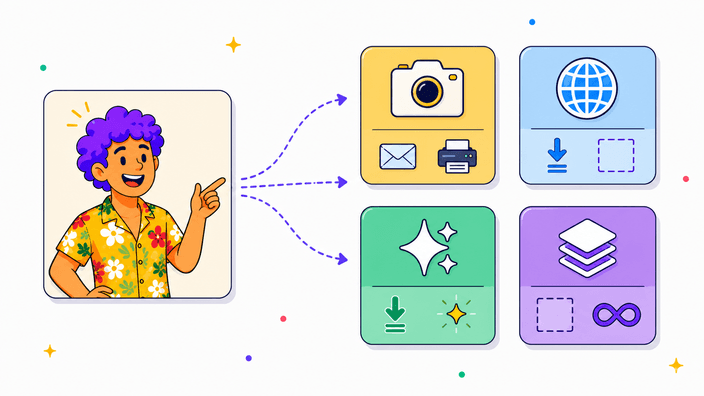
JPG (MozJPEG) is the safest choice for photos going to email, print, or any workflow that might not support newer formats — universal support, no transparency. WebP (libwebp) is the best default for the web: typically 25–35% smaller than JPG at the same visual quality, and it supports transparency. AVIF (libavif) pushes compression further, often 40–60% smaller than JPG, and works in Chrome, Firefox, Safari, and Edge; the first encode takes a couple of seconds while the WebAssembly module loads. PNG (Oxipng) is lossless — every pixel is preserved; the quality slider is hidden for PNG because there's nothing to lose. Typical saving on an unoptimized PNG: 30–50%, up to 70% on freshly-rendered exports. For input, the tool accepts JPG, PNG, WebP, and AVIF on every modern browser, plus GIF (first frame only) and HEIC (Safari only).

Quality slider, in plain language

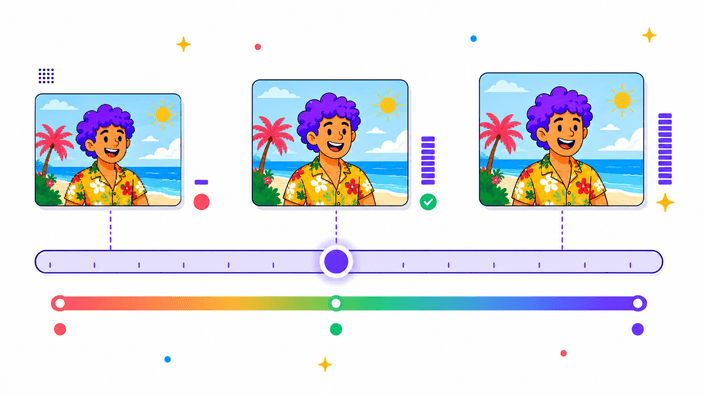
The slider runs from 1 to 100 for lossy formats (JPG, WebP, AVIF). Higher means less compression artifact and a larger file. Lower means a smaller file with more visible degradation. 80 is the default — it matches Photoshop's 'high quality' JPEG tier and is what most professional workflows use. 60 is a solid web-and-email default where file size matters more than print quality. Below 50, block artifacts start appearing on smooth gradients and skin tones. Below 30, the output is recognizable but clearly compressed — useful only for thumbnails. The size counter above the slider updates as you drag. It shows the exact byte count of the re-encoded output — measured, not estimated. When the re-encoded file is larger than what you uploaded (which happens with already-compressed JPGs at quality 100, or PNGs previously optimized by another tool), the saved value goes negative and the card tells you plainly: lower the slider or switch formats.

Frequently asked questions

Is Compress Image really free?

Yes. No account, no signup, no watermark, no trial period. It runs entirely in your browser — there's no server cost for us to pass on.

Does my image get uploaded anywhere?

No. The image is decoded and re-encoded entirely inside your browser. You can confirm this in the Network tab of DevTools: filter to image requests while you run the tool and the count is zero. There is no server handling this feature — not ours, not a third party's.

Can I compress WebP files?

Yes. WebP is a supported input format on all modern browsers. You can compress a WebP and export it back as WebP (smaller), or convert it to JPG or AVIF while you're at it.

Which input formats can I upload?

JPG, PNG, WebP, and AVIF on every modern browser. GIF works in Chrome and Firefox but only the first frame is kept — animation isn't preserved. HEIC from iPhones works in Safari only (Safari has a native HEIC decoder); in Chrome or Firefox, convert HEIC to JPG first using our Convert tool.

How much smaller will my file be?

It depends on the input. A typical unoptimized photo at quality 80: WebP is usually 25–35% smaller than the JPG equivalent; AVIF is usually 40–60% smaller than JPG. PNG with Oxipng saves 30–50% on unoptimized PNGs, up to 70% on freshly-rendered ones. The live size counter shows you the exact number for your file before you download.

What quality should I pick?

80 if you're not sure — it's the default and matches Photoshop's 'high quality' JPEG. Drop to 60 for web uploads where size matters more than print-quality detail. Drop to 40 only for thumbnails. Raise to 90–100 if you're editing the file further and don't want to stack compression losses.

Why does my file get LARGER at quality 100?

Quality 100 doesn't mean no compression — it means 'minimize visible artifacts.' If your input was already an optimized JPG, re-encoding at quality 100 with MozJPEG can produce a larger file because the two encoders made different internal trade-offs. The fix: lower the quality slider until the size counter turns positive, or switch to WebP or AVIF, which compress smaller at the same visual quality.

How small can the PNG get?

PNG output runs through Oxipng, which picks better filter and deflate parameters than a standard canvas export would. Typical savings: 30–50% on unoptimized PNGs, up to 70% on freshly-rendered ones. It stays lossless — every pixel is byte-identical to the input. If you want a dramatically smaller file and don't need transparency, WebP at quality 80 usually beats any lossless PNG run — try both with the live format comparison.

Does compression change the image's dimensions?

No. Width and height are preserved exactly. If you also need to downsize the image (e.g., from 4000 px wide to 1200 px wide), use the Resize tool first or after.

Will EXIF metadata survive?

No. The re-encoded file is stripped of EXIF, GPS, and camera metadata because the WebAssembly encoders don't carry source metadata through. That's a privacy win for most users (no GPS coordinates leaked in the file), but if you need to preserve metadata, this isn't the right tool.

Can I compress many files at once?

Not yet — one image at a time. Drop them in one by one: each run takes well under a second for JPG and WebP, a couple of seconds for AVIF on the first encode.

Does AVIF work everywhere?

Encoding: yes — we ship a WebAssembly libavif encoder, so AVIF output works in every modern browser regardless of whether the browser has a native AVIF encoder. Viewing the output: Chrome, Firefox, Safari, and Edge all support AVIF. If you're sending the file to a specific recipient, test once first; WebP is the safer universal choice.

What's the largest image this tool can handle?

There's no hard cap — it's limited by your device's RAM. A modern laptop handles 50-megapixel photos in a second or two. Very large files (raw input files over ~200 MB) may exhaust memory on phones — resize first if that's your situation.