Is this really free?
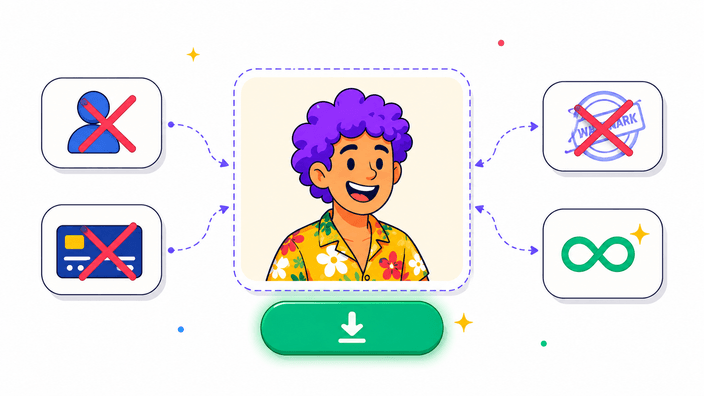
Yes. No account, no trial, no watermark, no per-image limit. The site is supported by a single ad below the tool.
Where does my image get processed?
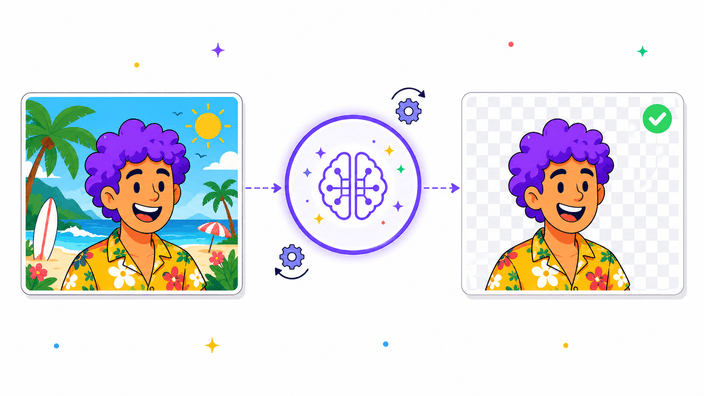
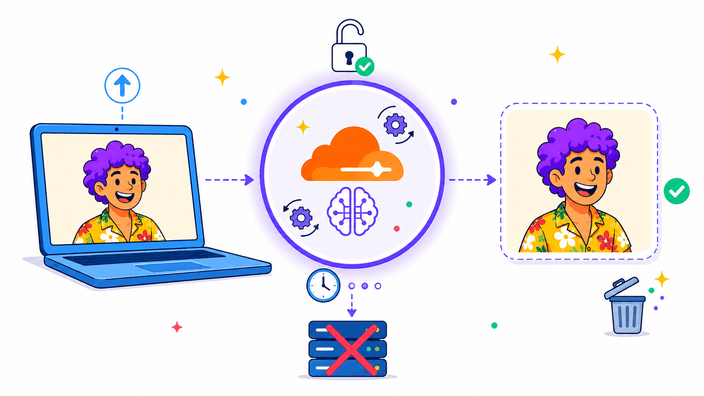
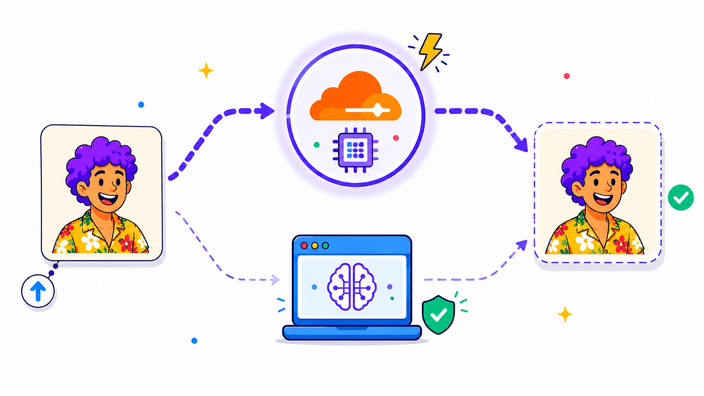
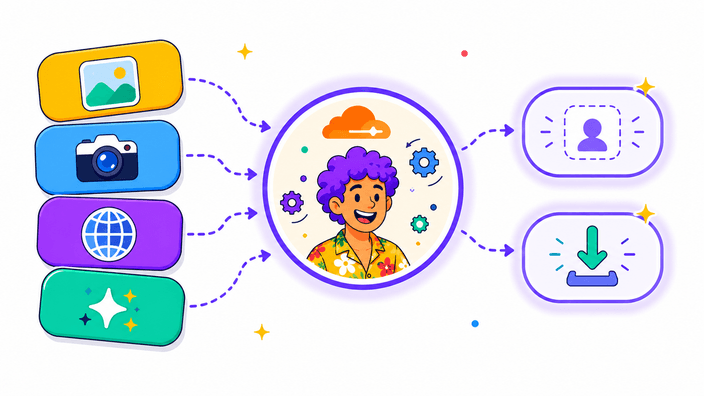
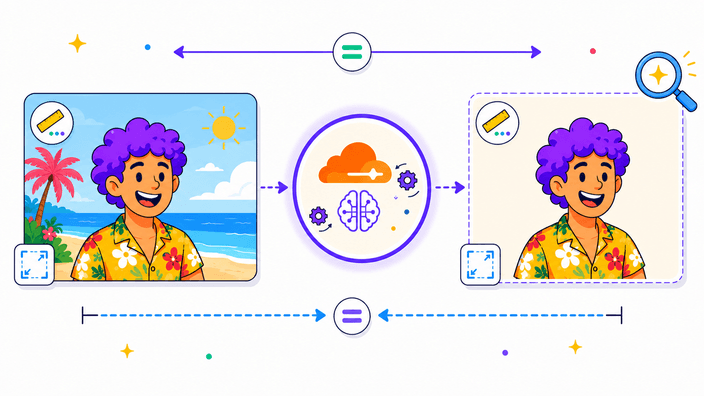
By default, on our Cloudflare Worker — your image is uploaded, segmented using the BiRefNet model on Cloudflare's edge GPUs, the cutout is returned, and the staging copy is immediately deleted. If the cloud is unreachable or your file is over 5 MB, the AI runs locally in your browser with zero outbound image requests. You can verify the fallback path in DevTools Network tab.
Is my image stored anywhere?
Only briefly on the cloud path. Your image is staged in a temporary Cloudflare R2 bucket so the segmentation model can fetch it, then the staging object is deleted as soon as the cutout is returned. A lifecycle rule auto-deletes any orphans within one hour. We never log, archive, or share your image. The in-browser fallback never uploads at all.
Do I need to create an account?
No. There is no signup, no login, no email required — at any step. Open the page, upload your image, download the result.
Which input formats can I upload?
JPG, JPEG, PNG, and WebP. Maximum 5 MB on the cloud path; larger files are routed to the in-browser engine which has no hard cap. For HEIC photos from an iPhone, convert to JPG with our Convert tool first.
Which output formats can I download?
Three: PNG (transparent background, lossless, the default), WebP (transparent background, lossy, much smaller), or JPEG (solid white background, no transparency). Choose PNG if you plan to paste the cutout onto another image; choose WebP for web or email file sizes; choose JPEG only when the receiving tool cannot handle alpha channels.
How fast is it?
On the cloud path, three to five seconds for a typical photo. On the in-browser fallback, twenty to forty seconds the first time (the model downloads about 80 MB, cached afterward), then two to ten seconds for every subsequent run.
Can it handle hair, fur, and fine edges?
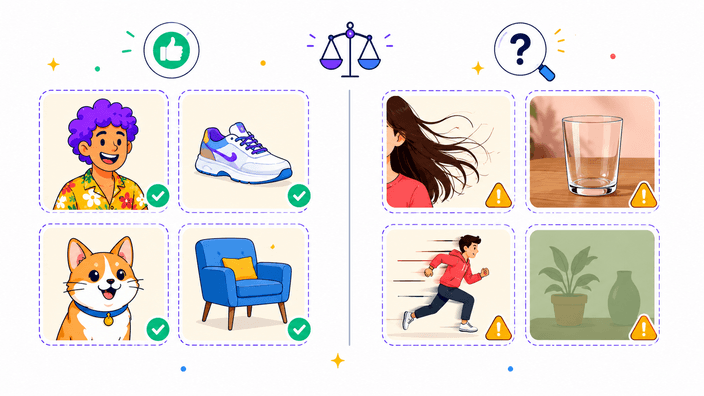
Yes, usually well. BiRefNet — the same architecture remove.bg uses internally — handles thin hair edges cleanly. Transparent objects like clear glass or fine mesh fabrics are genuinely harder: the AI must decide whether the see-through part is foreground or background, and it can guess wrong. Expect some manual cleanup for those.
Does it work on iPhone and Android?
Yes. The tool works in any modern mobile browser. The cloud path runs on our servers so your phone's hardware is not the bottleneck. If you fall back to the in-browser engine on mobile, processing is slower because of the device's lower RAM and CPU — but it still works. HEIC photos from iPhone should be converted to JPG first.
How do I get a white background instead of transparent?
Select JPEG as your export format. When JPEG is selected, the cutout is automatically flattened onto a solid white background because JPEG does not support transparency. Download as JPEG and you get an opaque white-background image.
Does the quality slider work on PNG?
No. PNG is lossless by design — there is no quality to trade off. The slider applies only to WebP and JPEG, which are lossy. On PNG the slider is hidden.
Is there a daily limit?
There is a generous per-IP daily cap on the cloud path so the free tier stays sustainable. Normal use never hits it. If you do hit it, the in-browser fallback takes over automatically for the rest of the day.
What happens if the cloud is down?
Nothing breaks. The dispatcher catches any failure — network error, 4xx, 5xx, or timeout — and silently switches to the in-browser engine. The progress overlay changes its copy to 'Loading on-device AI…' and continues.
What happens if I press Back in the browser?
Each step pushes a history entry. Pressing Back returns you to the previous step (done → editing → idle) instead of leaving the page. Your result and source image stay in memory until you navigate away or close the tab.